6,505 views
 Juniper ScreenOS Admin authentication using Windows based IAS (Radius)

On popular request, this is a quick write-up on how to set up a Juniper screenOS firewall to use an external Radius server (I’ll use Windows IAS) to authenticate administrators and to let the Radius server to assign admin privileges (read-only or read-write)
First, you will need to set up an dedicated external Authentication server for admin authentication on the screenOS device (assuming that your Radius server is 192.168.10.10):
set auth-server "IAS Radius Admin" id 1
set auth-server "IAS Radius Admin" server-name "192.168.10.10"
set auth-server "IAS Radius Admin" account-type admin
set auth-server "IAS Radius Admin" timeout 30
set auth-server "IAS Radius Admin" radius secret "ThisIsMyBadSecret"
You can optionally set a source interface. If ethernet0/1 is the interface that should connect to the Radius server, run set auth-server "IAS Radius Admin" src-interface "ethernet0/1"
(you cannot mix the ‘admin’ authentication type with other authentication types, which is why you need a dedicated authentication server in screenOS for this)
Next, on the IAS server, set up a Radius client. You can have a look at this post in order to find out how to do this. It’s not that difficult, just make sure the IP address and radius secrets match.
In your AD, create a group that will contain your read-only admins, and a group that will contain the read-write admins, and populate the group with the corresponding admin user accounts.
Create a Remote Access Policy for the read-writeaccounts :
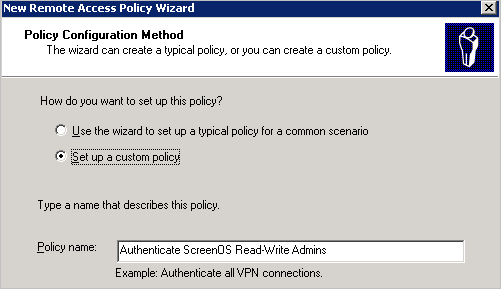
Policy conditions : click ‘add’ and select “Windows Groups”
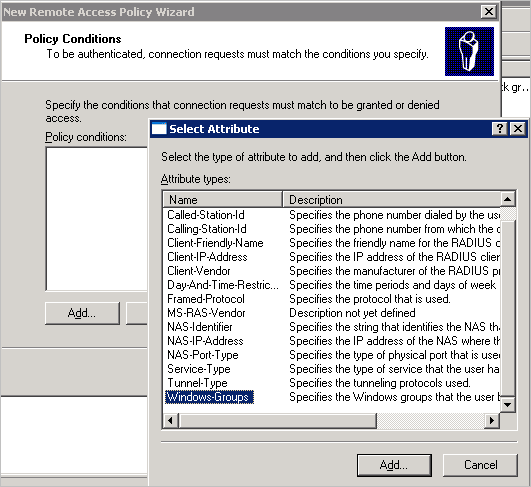
Click “Add” and select the WIndows group that contains the admin accounts that should have Read-Write access :
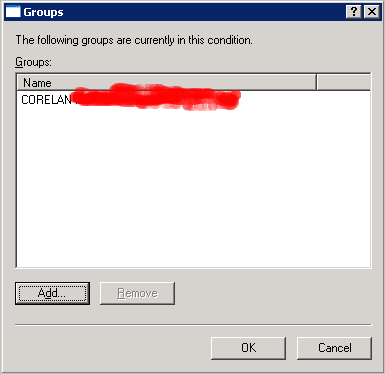
Click OK
Select “Grant remote access permissions”
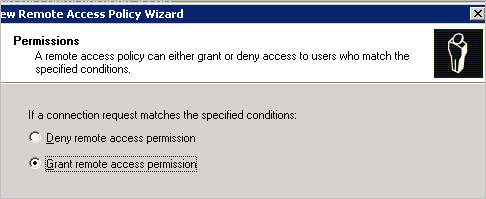
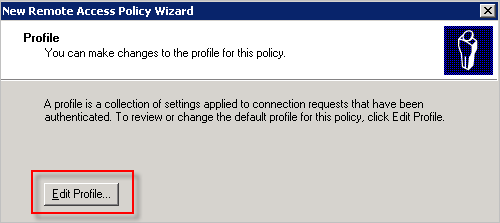
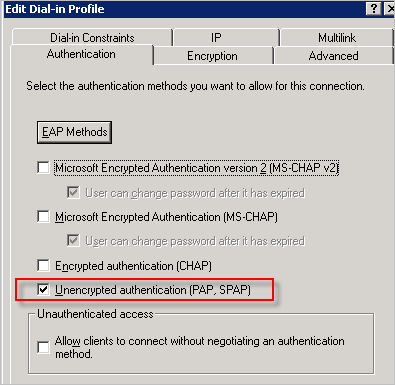
Click “Edit profile”. Open the Authentication page and only select PAP
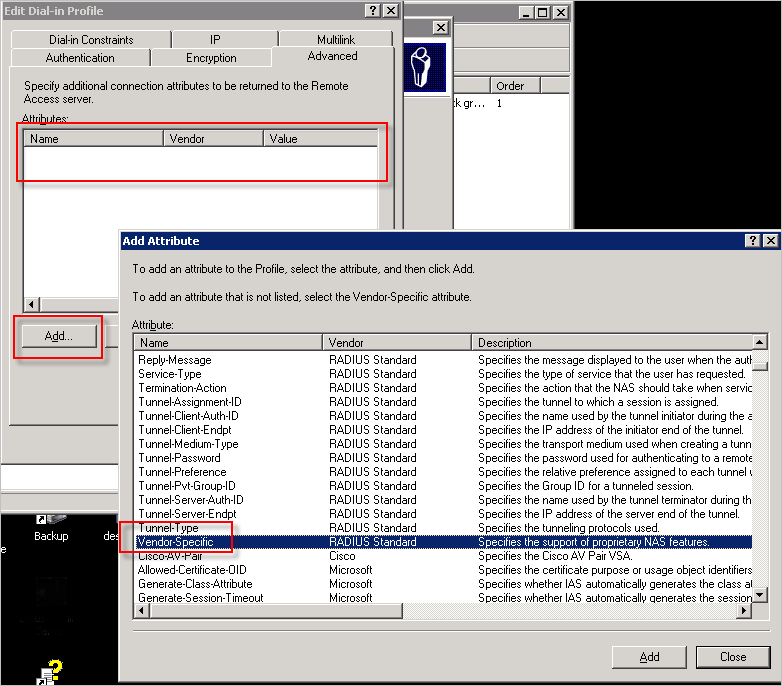
Go to the Advanced tab and remove the 2 existing attributes. Click “Add” to add a new attribute and select “Vendor Specific Attribute (VSA)”
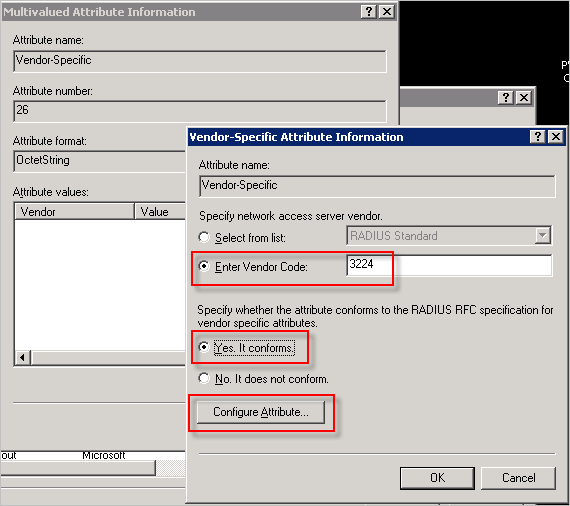
Set vendor code to 3224, select “Yes it conforms” and Click the “Configure Attribute” button
Set the attribute number to 1, format decimal, and enter 2 for read-write accounts
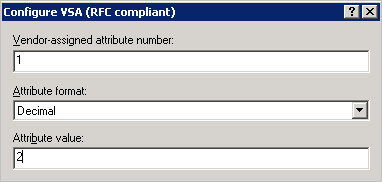
(enter value ‘4’ for read-only accounts)
Save the settings.
Note : If you do not configure a Vendor Specific Attribute to be returned, the default privileges will be used (which is read-only by default, but you can change that to read-write using the command set admin privilege read-write)
Now set the Juniper to use this Radius server for admin authentication :
set admin auth server “IAS Radius Admin”
That’s it.
Try to log on with a member of the Windows AD group and it should work just fine.

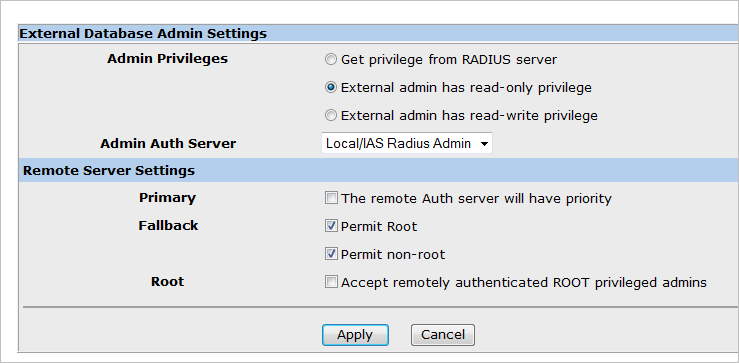
Note : By default, the root admin account will only be looked up locally. Even if you have a user in AD with the same name, the screenOS device will look up the user account locally first.
Additionally, you can find some other settings and preferences in the WebUI :
© 2008 – 2021, Peter Van Eeckhoutte (corelanc0d3r). All rights reserved.
Similar/Related posts:
 Using Active Directory and IAS based Radius for Netscreen WebAuth authentication
Juniper : Netscreen Remote Dial-UP VPN with AD Radius Authentication and route based VPN / tunnel interface
Windows XP L2TP over IPSec dialup client VPN to a Juniper ScreenOS firewall, using Certificates
IPSec VPN between Windows Server 2008 and Juniper ScreenOS
Juniper Firewall ScreenOS Basics (CJFV)
Using Active Directory and IAS based Radius for Netscreen WebAuth authentication
Juniper : Netscreen Remote Dial-UP VPN with AD Radius Authentication and route based VPN / tunnel interface
Windows XP L2TP over IPSec dialup client VPN to a Juniper ScreenOS firewall, using Certificates
IPSec VPN between Windows Server 2008 and Juniper ScreenOS
Juniper Firewall ScreenOS Basics (CJFV)
2 Responses to Juniper ScreenOS Admin authentication using Windows based IAS (Radius)
Donate

Your donation will help funding server hosting.